
If you installed Ubuntu 25.10 “Questing Quokka” last October, your system stopped getting security updates on 9 July 2026 — so here is how to upgrade Ubuntu 25.10 to 26.04 LTS cleanly. 25.10 was an interim release, and Canonical only supports interim releases for nine months. That window has now closed, and the fix is to move up to the current long-term support release, 26.04 “Resolute Raccoon.”
This only affects the subset of Ubuntu users who specifically chose the 25.10 interim build — students, developers, and desktop Linux tinkerers who wanted the newer packages. Most desktop users are already on an LTS release and are unaffected. But if you are on 25.10, this matters, and it is worth doing soon rather than later.
What “Ubuntu 25.10 end of life” actually means
End of life does not mean your computer stops working. 25.10 will keep booting and running exactly as before. What ends is maintenance from Canonical: no more security patches, no more bug fixes. Any vulnerability disclosed from now on simply will not be fixed for 25.10. As Canonical’s own end-of-life announcement put it:
“At that time, Ubuntu Security Notices will no longer include information or updated packages for Ubuntu 25.10.”
For a machine you use daily — especially one that touches the internet — running an unpatched OS is a real risk that grows over time. That is the whole reason to upgrade.
Ubuntu 26.04 LTS, by contrast, gets five years of standard security updates (until April 2031). You can stretch that to a full ten years for free using Ubuntu Pro, which is genuinely free for personal use on up to a handful of devices — it does require a free Canonical account, but for an individual it is a real no-cost option, not just an enterprise upsell.
First, check your PC can actually run 26.04 LTS
Do this before you start the upgrade. Ubuntu 26.04 raised its minimum requirements, and the jump is real:
- Processor: 2GHz dual-core or better
- RAM: 6GB minimum — up from 4GB in the previous cycle
- Disk: 25GB free space
The RAM increase is driven by the heavier GNOME 50 and Wayland stack that 26.04 ships with. If you are on older or low-memory hardware — say a 4GB laptop that ran 25.10 fine — this is a genuine catch, not a footnote. Upgrading onto a machine that no longer meets the minimum can leave you with a sluggish desktop. Check your RAM first (Settings, then About) and make sure you clear the eligibility bar before committing.
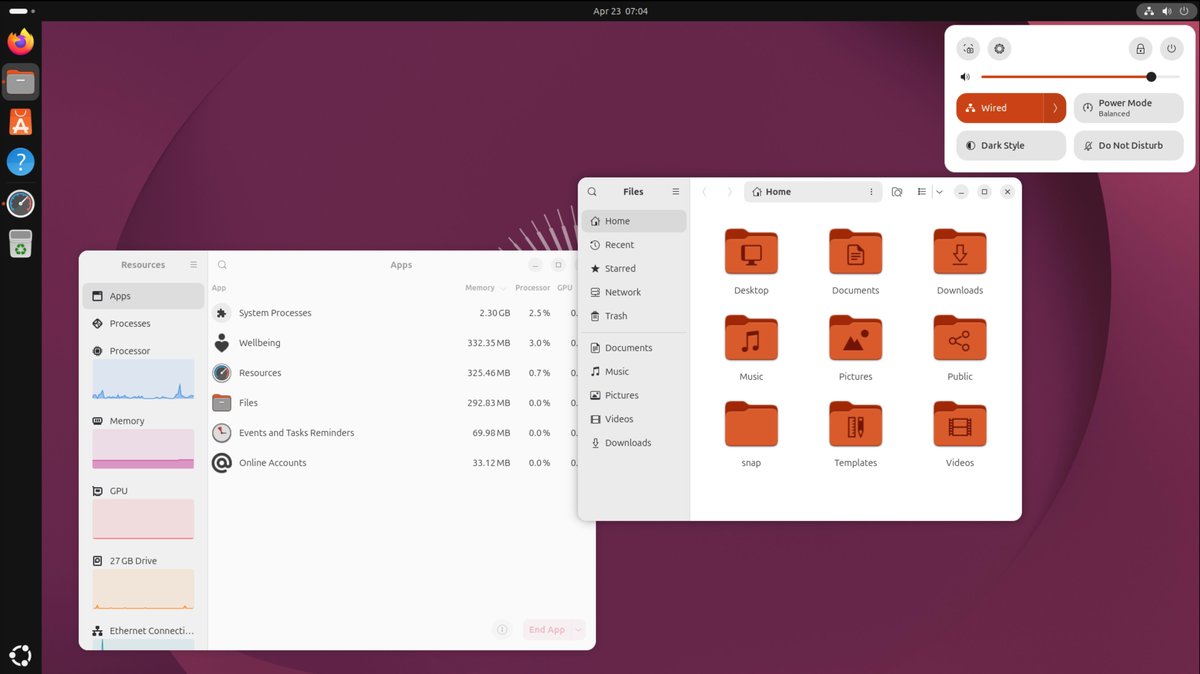
What you are upgrading into
26.04 LTS was released on 23 April 2026 and brings some visible changes worth knowing about before you land on it. It ships GNOME 50 on the Linux 7.0 kernel, and the old GNOME-on-X11 session is gone — the desktop now runs exclusively on Wayland (XWayland is still there for legacy X11 apps that need it). Several default apps have been swapped too: Papers replaces Evince as the PDF viewer, Loupe replaces Eye of GNOME for images, Ptyxis replaces GNOME Terminal, Resources replaces the old System Monitor and Power Statistics tools, and Showtime is the new default video player.
Before you upgrade
- If you are on a laptop, keep it plugged into power for the entire process — do not run an OS upgrade on battery.
- Make sure you have enough free disk space; the upgrade needs several gigabytes of temporary storage.
- Back up important files to external storage first. This is a safety habit before any OS upgrade, not a sign anything will go wrong.
- Fully update your current system first. Either open Software Updater, install all available updates and restart if prompted, or in a terminal run
sudo apt update, thensudo apt upgrade, thensystemctl reboot.
How to upgrade Ubuntu 25.10 to 26.04 LTS
There are two ways to start, and they do the same thing. Pick whichever you are comfortable with.
GUI method: Open the Software Updater application. When it detects that a new release (26.04 LTS) is available, click Upgrade and follow the prompts.
Terminal method: Run sudo do-release-upgrade.
If the new release is not offered: Open Software & Updates, go to the Updates tab, and check that “Notify me of a new Ubuntu version” is set to “For any new version.” With that set, the upgrade offer should appear.
During the upgrade
- The tool shows an overview of what will be installed and removed. Review it and confirm.
- It may warn that some “foreign packages” (things installed from third-party PPAs or repositories) are present. You can proceed and deal with those afterwards.
- Some visual glitches while the upgrade runs are normal — not a sign of failure.
- It will offer to remove obsolete packages from the previous release. Approving this is expected and fine.
- Restart when prompted at the end.
After the upgrade
Third-party software repositories and PPAs are often disabled during the upgrade so they cannot break it. Re-enable or update them from the Software & Updates application under the Other Software tab.
One honest caveat: if the system feels noticeably slower after the upgrade, check the 26.04 release notes for hardware compatibility issues — this ties back to the higher requirements above. On genuinely marginal hardware, a clean reinstall of 26.04 (after backing up your files) sometimes runs better than an in-place upgrade, though it is a last resort rather than a first step.
Sources: Canonical Ubuntu 25.10 end-of-life announcement, Ubuntu Desktop upgrade documentation
