
If your laptop keeps opening a context menu when you meant to click a link, the culprit is almost certainly the Windows 11 touchpad right-click zone — the invisible patch in the bottom-right corner of a precision touchpad where a single-finger press registers as a right-click instead of a left-click. On Microsoft’s own default values that patch is large: half the width of the touchpad and a quarter of its height. On the wide clickpads shipping in laptops today, that is a lot of surface waiting to misfire.
Windows 11 has finally added a way to shrink it from the Settings app, and there are two documented fallbacks if the new option has not reached your PC yet. Here is how to fix it.
Why the Windows 11 touchpad right-click zone misfires
A precision touchpad has no separate buttons. Windows decides what a physical press means by where your finger is. Press anywhere on the pad and you get a left-click; press inside the bottom-right region and you get a right-click. Microsoft’s hardware documentation puts the device-level defaults at 50 percent of the touchpad’s width, measured from the right edge, and 25 percent of its height, measured from the bottom edge.
That geometry was written for the smaller touchpads of a decade ago. On a modern 13-inch or 15-inch laptop with an oversized clickpad, the same percentages cover a genuinely big area — and if you rest your thumb low and to the right while clicking, which most people do, you will trip it. Left-handers are not spared either: if you have swapped your mouse buttons in Windows, the zone mirrors to the bottom-left corner instead.
Method 1: resize the zone from Settings (Windows 11)
Microsoft added a dropdown for this in Windows 11. From its own Windows Insider Blog announcement:
We’re adding a new setting in Settings > Bluetooth & Devices > Touchpad so you can choose how large the right-click zone size is (this is the portion in the bottom-right of your touchpad where pressing a single finger will result in a right-click), between default, small, medium, and large.
- Open Settings (
Win + I). - Go to Bluetooth & devices > Touchpad.
- Expand the touchpad section and look for the right-click zone size dropdown.
- Pick Small if you are getting stray right-clicks, or Large if you actually want an easier right-click target.
Two caveats come straight from Microsoft. The setting only appears for touchpads that have a pressable surface — haptic touchpads that simulate a click do not get it. And if your laptop maker ships its own touchpad utility and you have already tuned the zone there, Windows adds a Custom entry to the dropdown to preserve that value rather than overwriting it.
The option first appeared in Insider builds in March 2026 and, according to Windows Latest, reached general users with the July 2026 cumulative update. Microsoft’s own KB article for that update does not list it, so treat the rollout as staged — if the dropdown is not there after installing the July 2026 update, use one of the methods below.
Method 2: switch the corner press off entirely
If you would rather not have a right-click corner at all, Windows has let you turn it off for years — on Windows 11 and Windows 10 alike. This is the most reliable fix because it does not depend on any new build.
- Go to Settings > Bluetooth & devices > Touchpad (on Windows 10: Settings > Devices > Touchpad).
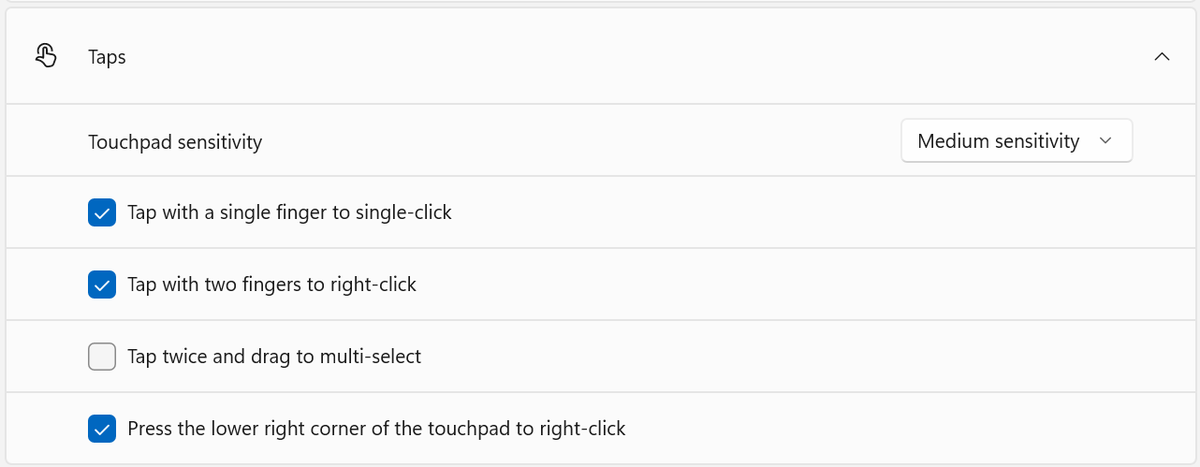
- Open the Taps section.
- Turn off Press the lower right corner of the touchpad to right-click.
- In the same section, make sure Tap with two fingers to right-click is on — that becomes your right-click.
Two-finger tap is deliberate in a way a corner press is not, so this trade is worth making if the corner has been annoying you.
Method 3: set an exact size in the registry
Windows has carried per-user registry values for the zone dimensions since Windows 11 build 26027, long before the Settings dropdown existed. They give you a precise percentage rather than four presets. Back up the registry before you touch it, as Microsoft advises in the same document.
- Press
Win + R, typeregeditand press Enter. - Navigate to
HKEY_CURRENT_USER\SOFTWARE\Microsoft\Windows\CurrentVersion\PrecisionTouchPad. - Create or edit two DWORD (32-bit) values named
RightClickZoneWidthandRightClickZoneHeight. - Set each in Decimal to a percentage from 0 to 100 — for example
25for width and15for height to get a much smaller corner. - Sign out and back in, or reboot.
Microsoft documents the default for both values as 0, which means “use the device’s own configuration”. Any non-zero value overrides it. Check your build first with winver — below build 26027 these values do nothing.
Still getting stray clicks? Check sensitivity
If the misfires happen while you are typing rather than while clicking, the right-click zone is not your problem — palm rejection is. In Settings > Bluetooth & devices > Touchpad > Taps, open the Touchpad sensitivity dropdown and pick a less sensitive setting than the default. Microsoft’s documentation is explicit about what this does: the less sensitive the touchpad, the longer Windows suppresses touchpad input after keyboard activity. The most sensitive setting switches that suppression off entirely.
The honest caveat
It is worth naming how long this took. The registry values for a resizable right-click zone have been documented since Windows 11 build 26027, sitting in a section of Microsoft’s documentation literally headed “Settings with no user interface”. Over two years later a dropdown finally arrives — and only for touchpads with a pressable surface, which quietly excludes the haptic pads now appearing on premium laptops. Meanwhile the OEM utilities that many budget laptops sold in India ship with can still override what you set here, so if the Settings change refuses to stick, check the manufacturer’s own touchpad app before assuming Windows is broken.
Sources: Windows Insider Blog, Microsoft Learn, Windows Latest
