
Windows 11 is finally letting you move the taskbar off the bottom of the screen. A resizable Start menu and a way to strip Bing out of Windows Search are rolling out alongside it. These changes first shipped in the August 27 optional preview update, KB5120998 (builds 26100.9278 and 26200.9278, covering versions 24H2 and 25H2), and are reaching more PCs through the monthly cumulative updates that follow it. Here’s exactly where to find each setting.
Why Windows 11 is getting these back
Windows 10 let you dock the taskbar on any edge of the screen. Windows 11 removed that choice at launch in 2021, locking the taskbar to the bottom. Microsoft is walking that back, along with independent Start menu sizing and section toggles. “Start and taskbar are where that trust is tested most, every time you sit down at your PC,” Diego Baca wrote on the Windows Insider Blog when Microsoft first previewed the changes.
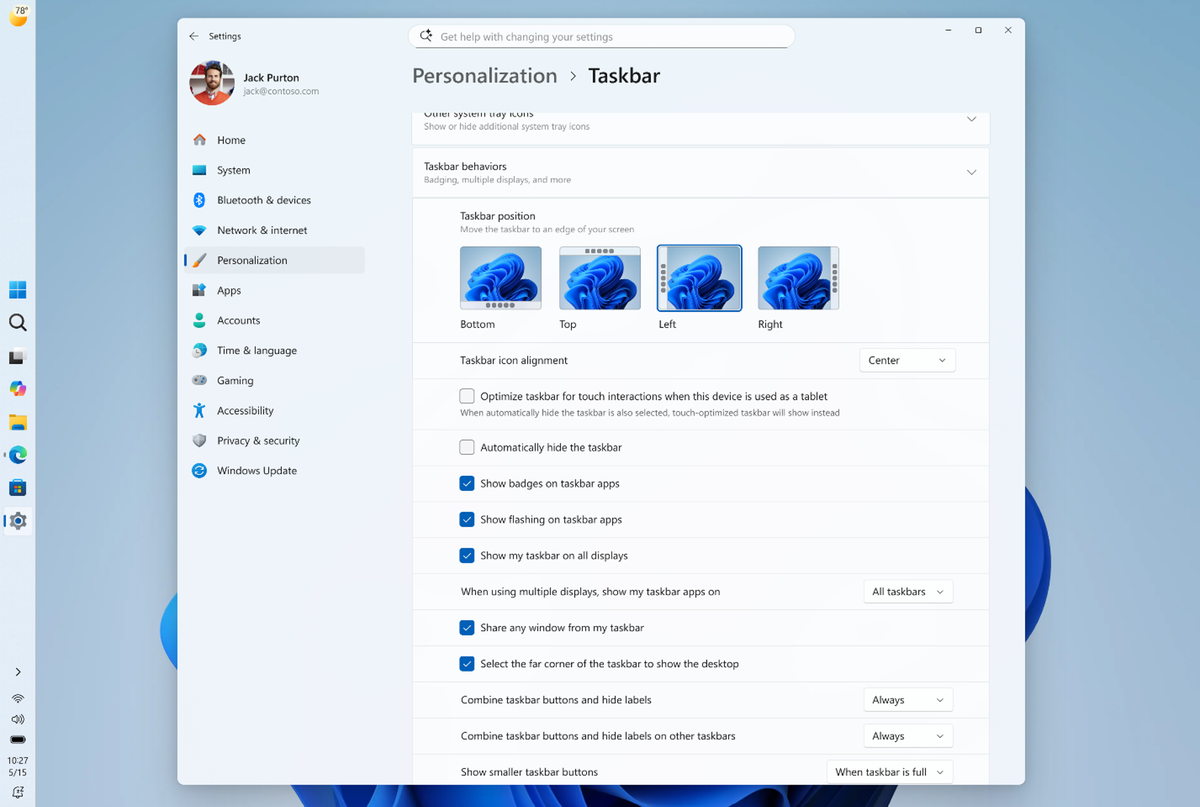
How to move the Windows 11 taskbar to the top or side
- Open
Settings > Personalization > Taskbar. - Expand Taskbar behaviors.
- Under Taskbar position, pick Bottom, Top, Left, or Right.
The Start menu and other flyouts now open from whichever edge you pick. Move the taskbar to the left, for instance, and Start opens from the left edge too.
How to resize the Start menu and hide your name
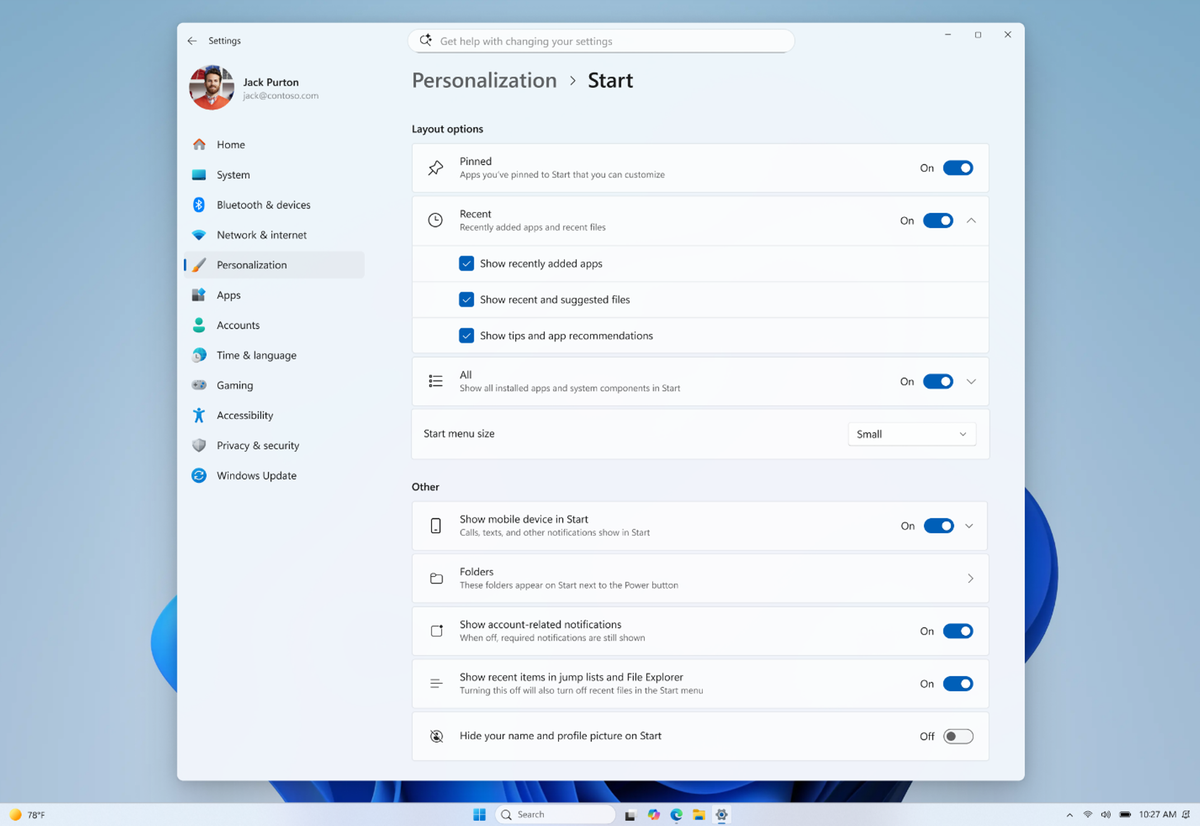
- Go to
Settings > Personalization > Start. - Use the Start menu size dropdown to switch between Small and Large.
- Use the separate toggles for Pinned, Recent, and All to hide entire sections you don’t use.
- Scroll to Other and switch on Hide your name and profile picture on Start.
That last toggle is useful if you share your screen often. Your account details still appear when you click the account picture directly.
How to cut Bing out of Windows Search
Head to Settings > Privacy & security > Search. Find the section covering suggested search results and turn off the toggle for web results. Windows Search then sticks to apps, settings, and files already on your PC, without mixing in Bing or Microsoft Store suggestions. A separate toggle in the same section lets you drop just the Store suggestions if you want to keep web results on.
If you don’t see these options yet
Microsoft ships most Windows 11 features through a Controlled Feature Rollout. It’s a staged release that reaches devices in phases. The settings can take days or weeks to show up on a given PC, even after installing the right cumulative update. Check Settings > Windows Update first to confirm you’re on KB5120998 or a later monthly update. If the options are still missing, your device’s rollout group just hasn’t been reached yet.
Two other issues have shown up on some PCs since this update: a black desktop background bug and Teams and Outlook failing to open on ARM-based Windows 11 PCs. Both are listed as known issues on the KB5120998 support page.
