
Does the Copilot key on your Windows 11 laptop sit exactly where your Right Ctrl or Context menu key used to be — and do you keep hitting it by accident? You are not alone, and Microsoft has finally admitted as much. A “Do nothing” switch that kills the key outright has just turned up in Windows 11 Insider builds, spotted on 23 July by Windows watcher @phantomofearth. It is not in the version of Windows 11 on your PC yet. So here is what actually works today, and what is coming.
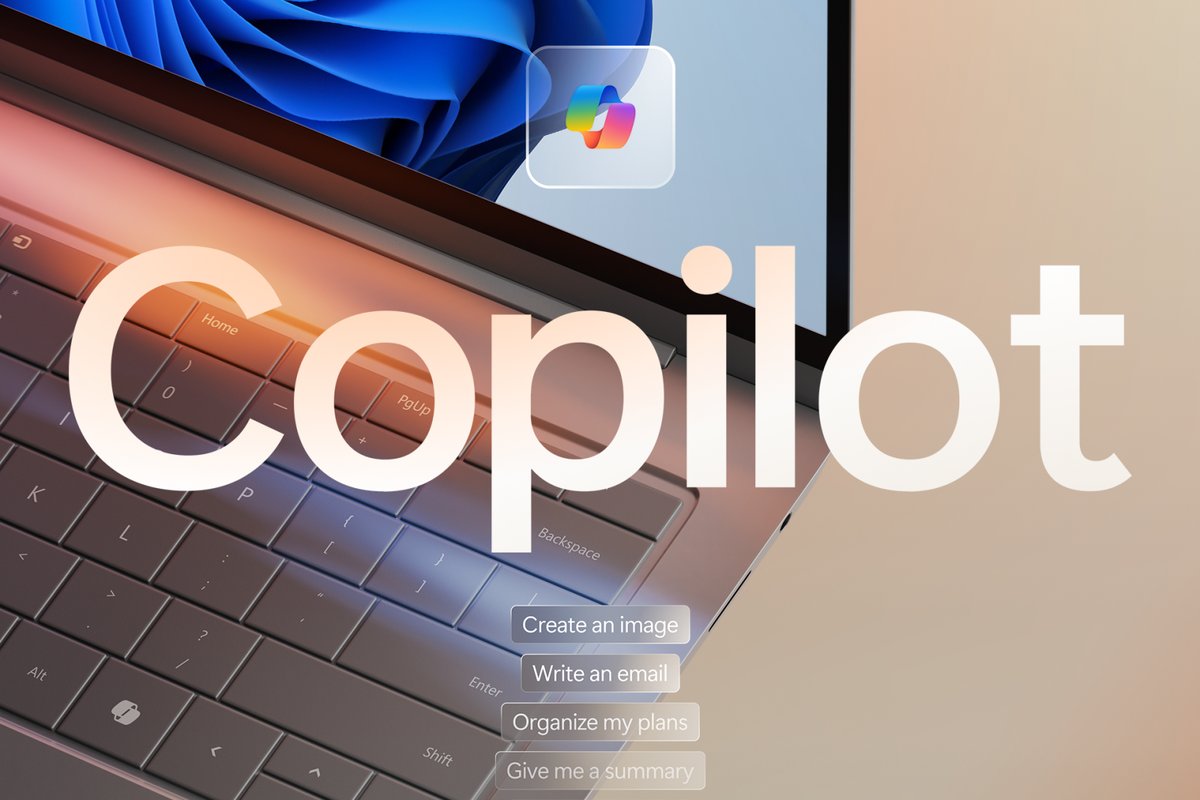
Why the Copilot key annoys so many people
When Microsoft announced the key in January 2024, it called it the first significant change to the Windows PC keyboard in nearly three decades. The problem is where OEMs put it. On most laptops it sits to the right of the right Alt key — the slot previously occupied by the Right Ctrl key or the Context menu key. Plenty of Windows laptops on sale in India today ship with one.
Microsoft’s own accessibility documentation now concedes the fallout:
“Customers who rely on the Right Ctrl key or Context menu key for keyboard shortcuts or assistive technologies (such as screen readers) experienced some challenges to their workflows when using these devices.”
One useful technical detail explains why remapping is possible at all: the Copilot key is not a new key with its own scan code. Microsoft’s PowerToys documentation states plainly that the Copilot key sends Win + C or Left Shift + Windows key + F23. Any tool that can intercept a keyboard shortcut can therefore intercept this key.
Step zero: check that your keyboard has the key
Look immediately to the right of the right Alt key for a ribbon-style Copilot icon. If it is not there, none of the settings below will do anything — the customisation option only does something on PCs that have the key. Desktop users on an older keyboard can stop reading here.
Option 1: change what the Copilot key opens (built into Windows 11)
Windows 11 has shipped a limited customisation setting since 2024. It cannot switch the key off, but it can stop it from launching Copilot.
- Open Settings (
Windows key + I). - Go to Personalization > Text input.
- Expand Customize Copilot key on keyboard.
- From the dropdown, pick Search to make the key open Windows Search instead, or Custom to point it at an app of your choice.
The Search option is the most practical choice for most people — and Windows 11 search is in the middle of losing its ads and clutter, so it is more useful than it was a year ago. The Custom route comes with a real catch: Microsoft only allows apps that are MSIX-packaged and signed, which rules out a large share of ordinary desktop programs. Notepad or your favourite Win32 utility will most likely not appear in the list.
Option 2: remap or disable the Copilot key with PowerToys
If you want the key to behave like Right Ctrl again — or to do nothing you will ever notice — Microsoft’s own free PowerToys utility is the only route that works on today’s stable Windows 11.
- Install PowerToys from the Microsoft Store, or via
winget install Microsoft.PowerToysin Terminal. - Open PowerToys Settings and select Keyboard Manager in the left pane. Make sure the utility is enabled.
- Select Remap a shortcut, then Add shortcut remapping.
- In the Select column, click Select and simply press the Copilot key itself — the dialog captures whatever your keyboard actually sends. Hold
Enterto confirm. If you would rather set it manually, build the combinationLeft Shift+Win+F23from the dropdowns instead. (F13 to F24 are all remappable, even though no modern keyboard has them physically.) - In the To send column, choose Right Ctrl — or the Context menu key, if that is what your laptop gave up.
- Click OK. The remap applies immediately; no restart needed.
PowerToys also offers an Exact Match toggle when you map a shortcut to a single key, which stops the remap firing if other keys are held down at the same time. Worth enabling if you use a lot of modifier-heavy shortcuts.
The caveats you should know before you rely on this
- PowerToys must be running. Microsoft’s documentation is explicit: if PowerToys is not running in the background, the remap stops applying.
- It does not work on the sign-in screen. Keyboard Manager is unavailable on any password screen.
- Elevated apps need elevated PowerToys. Remaps will not apply inside a window running as administrator unless PowerToys itself runs as administrator.
- Avoid it while gaming. Microsoft warns that Keyboard Manager’s key interception can hit frame rates.
What’s coming: a real “Do nothing” switch
Microsoft has confirmed that a future Windows 11 update will add native remapping under Settings > Bluetooth & devices > Keyboard, with the choice of Right Ctrl or Context menu. The “Do nothing” option @phantomofearth found in Experimental Insider builds goes further, making the key inert entirely.
Neither has reached stable Windows 11. The feature is not listed in the July 2026 cumulative update KB5101650, and Microsoft has given no firmer date than “an upcoming Windows 11 update”. Note also the caveat in Microsoft’s own documentation: if you remap the key to Right Ctrl, some shortcuts using the physical Left Shift together with Right Ctrl may not work consistently on all keyboards, and you should use the physical Right Shift instead.
It is worth saying plainly what happened here. Microsoft pushed a hardware key onto laptop makers that displaced two keys people actually used, including for screen readers, and more than two years later the off switch still is not in shipping Windows — while new PCs keep arriving with the key on them. Until that changes, PowerToys is doing work that Settings should have done in 2024.
Sources: @phantomofearth, Microsoft Support, Microsoft PowerToys documentation
